Fixing Black Borders Under MOV Animations
Written By ccLeaf Team
Last updated 5 months ago
Fixing Black Borders Under MOV Animations
If your ccLeaf animations show a black bar or border when you import them, it’s usually a color space / sequence setting issue, not a problem with the file itself.
DaVinci Resolve Fix
Open the Color page.
Select the clip with the black border.
In the top-right, open the Effects panel and add Color Space Transform.
Set Input Color Space to Rec.2020 (leave output as your timeline default).
This forces Resolve to interpret the clip correctly and removes the border.
Premiere Pro Fix
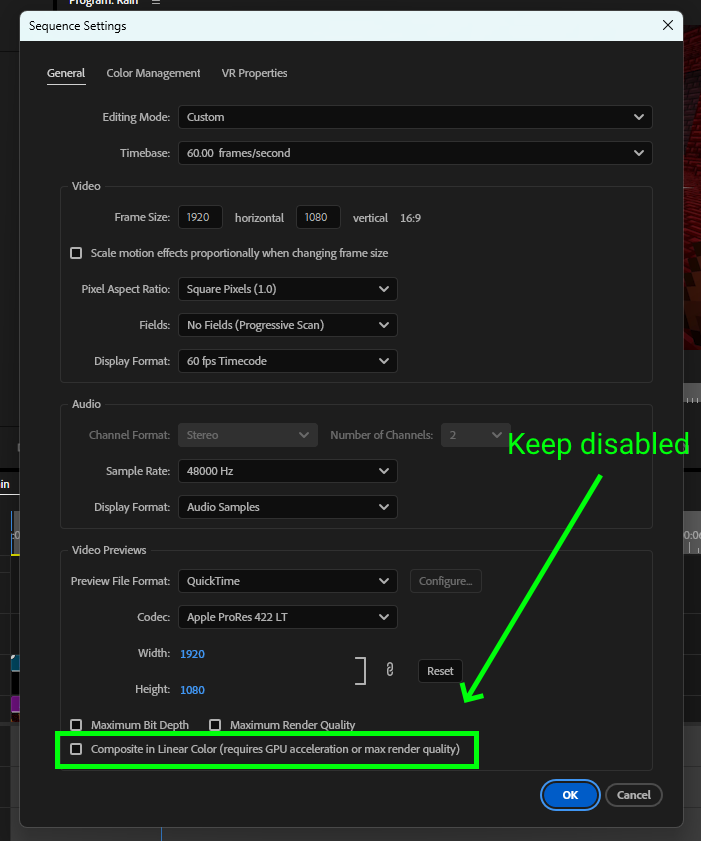
Open Sequence > Sequence Settings.
At the bottom, uncheck the last checkbox related to color management for the sequence.
Click OK and recheck your animation on the timeline.
If you’re using another editor, look for its color management / color space settings and ensure the imported clip is interpreted as Rec.2020 or the same color space used on export.
Still need help? Ask the team